
A business requirement I have been tasked with is to create an S Curve from a XER file that can be used within Power BI.

A S curve is a chart that is commonly used within Project Management to track cumulative costs, hours, earned value over time. Progress generally starts slow at the beginning, then increases over the scope of the project and then slows down at the end.
In order to visualise your progress over time, you have to breakdown the metric you want to track by the time period you want to track it over.
For this example we look at the duration of the planned task from Start to Finish and then work out the number of days taken (+1) because Duration.Days is exclusive of the days within the function.
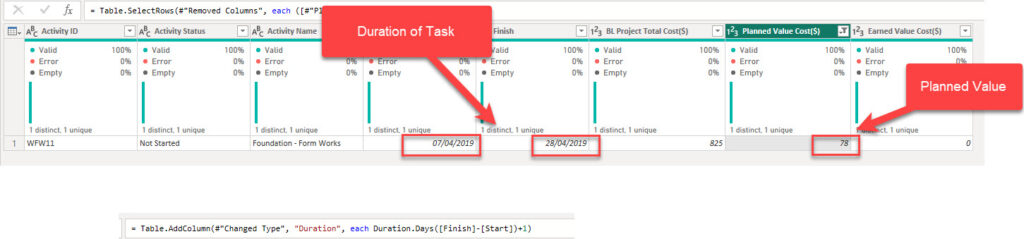
Once we have the number of days, we can then divide the total to get the estimated daily value.

This daily value has to be at a daily granularity, eg, for every date that the task has been calculated for there has to be a row in the table.

Once you expand the table you will see the list of numbers that you can convert into a date value.


(NB: If you wish to include only working days you can create a custom function that will exclude weekends and holidays within your list of dates https://mohamedsabbah.com/exclude-non-working-days-from-your-projects-dashboard/)
With the estimated daily value for each day that the task has been running we can create a cumulative measure to work out what the estimated overall spend should be at a specific point of time.
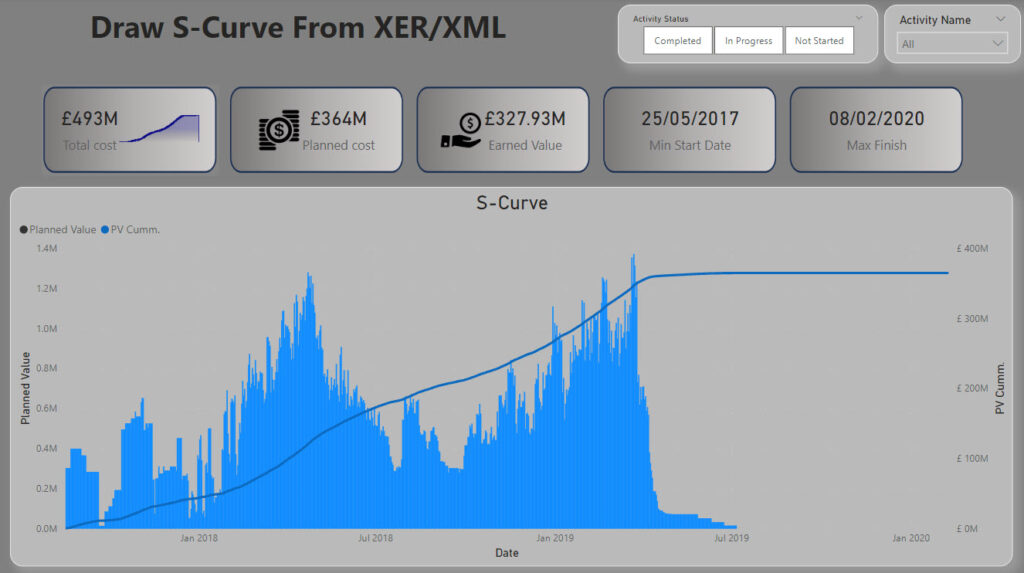
This measure can be plotted on a graph to show the relationship between planned and earned value for example together with actual values over time.
Your data model can be set up to allow for filtering by any categorical field within your dataset – Task Name, Task Code, Activity Status… which will give you the ability to S Curve’s for any of the categorical data.
Key Steps:
Using the XER file extract from Primavera P6, extract the task table
- Select these columns

2. Filter to remove those rows that don’t have a completed start or finish row
This will give you the Activity ID as the lowest level of granularity grouped by WBS Code and Activity Status
Can now create tabular format required for S curve
3. Start and Finish need to be changed to date, then can add a duration column with one day added to allow for inclusion of start date within duration as duration days is exclusive of start and finish date.
4. Divide Earned Value, Planned and Forecast by Duration to get daily value
5. Create a list using start and finish dates for each row – remove holiday and weekends as required
6. Expand list to get daily value for each date
7. Filter to only keep those values that are numbers – nb could us try and otherwise to catch errors
From task you can create a dynamic calendar that allows you to use the min Start date and max finish date
Once you have finished creating the tables, then you can load S Curve table into Power BI and load the date table.

Set up model and create a total measure for Actual, Planned and Earned and then create a cumulative measure to show the S Curve.
Planned value is Planned Value = SUM(‘SCURVE-Task'[PV-AmountDay])
S Curve for Planned Value is calculated as:
PV-AmountDay running total in Date =
CALCULATE(
SUM(‘SCURVE-Task'[PV-AmountDay]),
FILTER(
ALLSELECTED(‘Calender'[Date]),
ISONORAFTER(‘Calender'[Date], MAX(‘Calender'[Date]), DESC)
)
)
Resources:
Excellent example on how to create S Curve in PowerBI from which this report is based and developed
https://mohamedsabbah.com/how-to-draw-s-curve-on-power-bi-with-xer-xml/
Definition of S Curve and how it is used:
https://edworking.com/blog/remotework/what-is-scurve-in-project-management
Clear example of how to create S Curve in Excel:
https://www.myonlinetraininghub.com/excel-s-curve-charts#:~:text=S%2Dcurve%20charts%20are%20a,acceleration%20in%20the%20middle%20periods.
Information on generating S Curve from XER File:
https://www.linkedin.com/pulse/power-bi-generating-s-curve-directly-from-xer-file-ahmet-kochan/
Details about XER File:
https://project2080.com/en/connect-the-primavera-p6-xer-file-to-power-bi/